Video workflow
How to use vidrush ai for your first video
If you are wondering how to use vidrush ai, start with a brief that names the subject, audience, format, and intended result. This guide walks through a first draft and a careful review, without assuming that every editing or export option will be available.
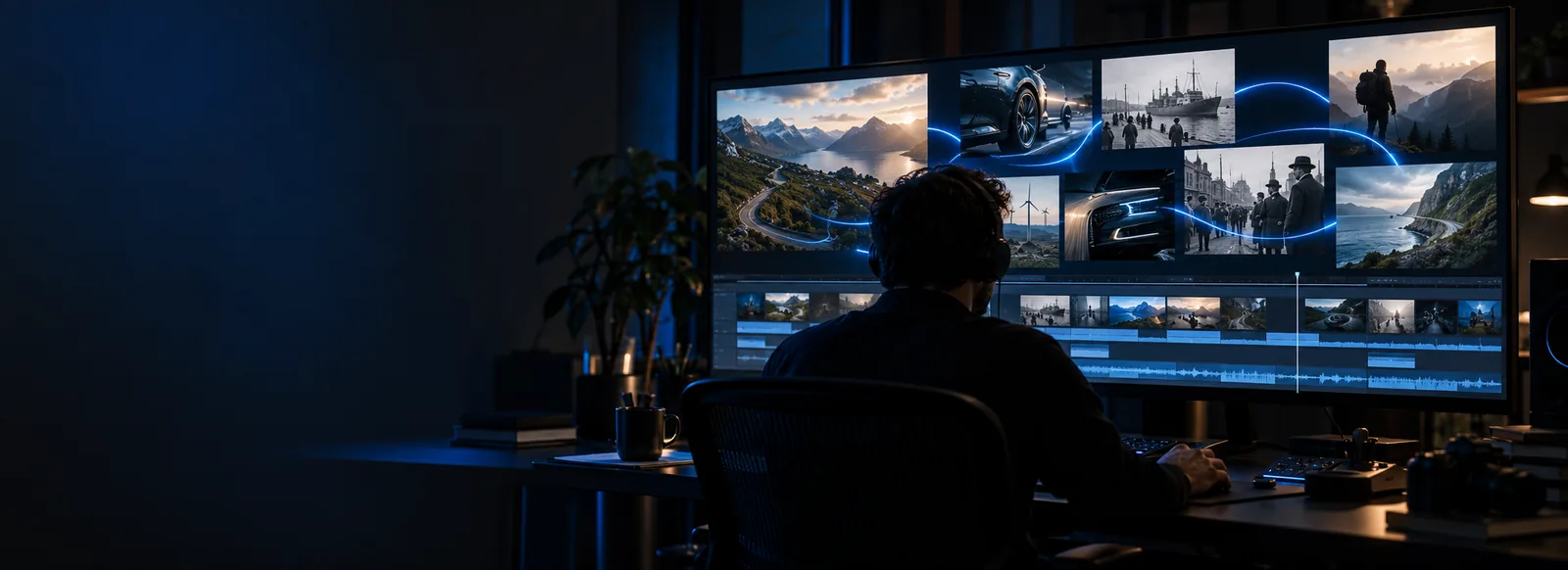
Start with a clear outcome
A useful brief says what the viewer should understand or do by the end. Choose one purpose before deciding on scenes, narration, or visual style.
Three passes from idea to draft
Treat the first result as material to evaluate, not a finished video. Move from a specific request to a draft, then make revisions based on what a viewer would actually see and hear.
-
1
Write a focused brief
Open Vidrush and describe one video rather than an entire campaign. Name the topic, who will watch, the desired length or format, the tone, and the closing point. For an explainer, you might ask for a short opening question, two concrete examples, and a final takeaway. If you already have a script, use its main beats as your outline rather than pasting unrelated notes together.
-
2
Make and inspect a draft
Send the brief through the available creation flow, then watch the result from beginning to end. Check whether the opening matches your subject, whether each scene supports the narration, and whether on-screen words are readable. Do not judge Vidrush by a thumbnail alone: a promising frame can hide awkward pacing, a missing point, or a transition that changes the meaning of the script.
-
3
Revise one issue at a time
Identify the most important mismatch and make a targeted request, such as replacing a generic opening with a specific question or shortening a slow middle section. Review the new version against the same brief before changing the music, voice, or visual treatment. Once the message works, check names, captions, source material, and the ending again before using the video elsewhere.
Review the draft step by step
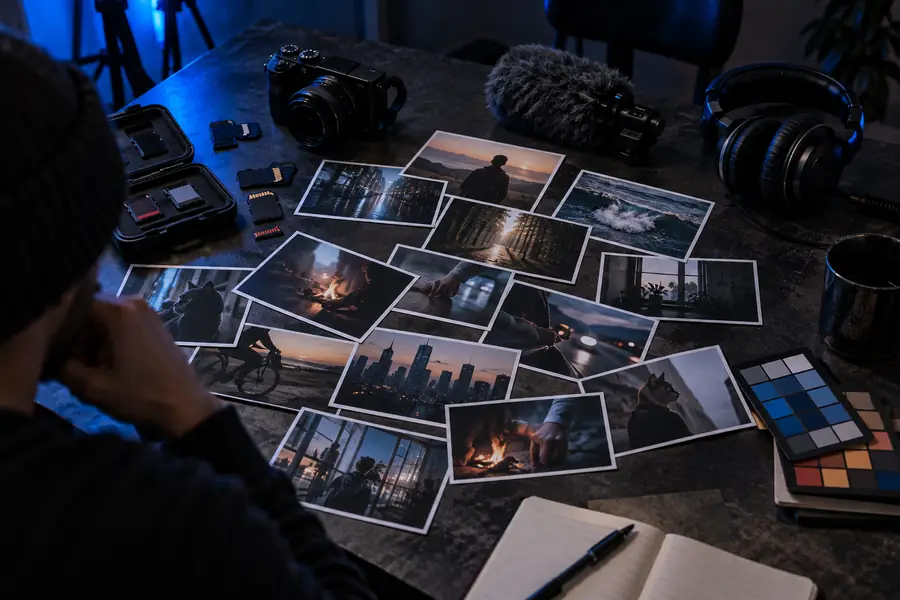
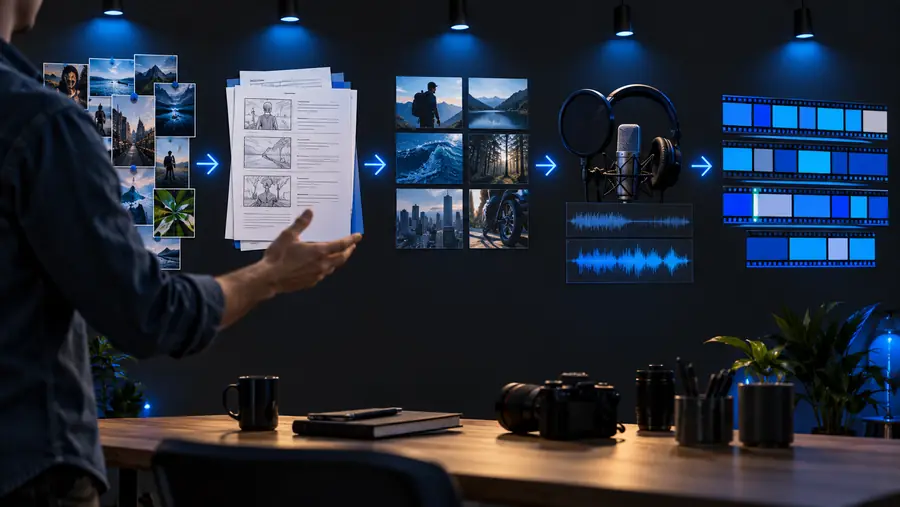
Compare what you intended to communicate with what the sequence actually communicates. The visual pair illustrates the move from source material to an assembled video; it is not a documented transformation of one file.
- Source material
- Video draft
These are illustrative images, not verified before-and-after frames from the same Vidrush project. For your own draft, pause at the opening, each major point, and the ending. At every pause, ask whether the image, spoken line, and on-screen text agree.
Limits and edges
A clear prompt helps, but it cannot replace checking the output. Available controls and results may differ, so plan a review step even for a simple video.
-
A prompt cannot verify claims
Vidrush may present a confident-sounding line even when a name, date, statistic, or causal claim needs checking. A fluent voiceover is not evidence that the underlying information is correct.
WorkaroundConfirm important claims against reliable sources and rewrite uncertain lines before sharing the draft.
-
A draft cannot grant usage rights
The presence of footage, an image, music, or a voice in a result does not by itself establish that you can use it for every purpose. Rights depend on the material and the applicable terms.
WorkaroundCheck the source and permissions for each asset you intend to publish, or replace it with material you can use.
-
The first pass may miss your intent
Vidrush cannot infer the audience, brand voice, or exact visual reference that you leave out of the brief. Broad requests can produce a plausible video that answers the wrong question.
WorkaroundAdd the missing audience or scene direction, then revise that specific mismatch instead of rewriting the whole brief.
-
Controls may vary by workflow
Do not assume that a particular aspect ratio, voice, caption style, or export format is available in the path you open. The controls you can see are the ones to plan around.
WorkaroundInspect the available options before committing to a delivery format, and keep a separate copy of your script and source notes.
Make the next pass count
Turn a clear brief into a video draft
Take the subject, audience, and ending you have chosen into Vidrush. Make one draft, watch it all the way through, and note the single change that would improve its message most. A deliberate second pass is more useful than adding every possible detail to the first request.
Create video draft- Begin with one message for one audience.
- Check the full sequence, not just the opening frame.
- Verify claims and asset permissions before sharing.
Questions about the workflow
Prepare a short description of your subject, intended viewer, and the one point the viewer should remember. If you have a script, outline, or usable footage, keep it nearby, but start by checking which inputs the workflow actually accepts. You can begin with a small explainer rather than planning a long sequence at once.
Give enough direction to prevent a generic result: include the topic, audience, tone, approximate length, and desired ending. Describe a few essential beats rather than trying to specify every frame. After seeing a draft, add detail where Vidrush misunderstood your intent instead of making the first request longer without a reason.
Look for the revision or editing controls available in the workflow you are using; the exact options may differ. If a change is possible, request one concrete improvement and compare the new draft with the earlier one. Keep your original brief so you can tell whether a revision fixed the problem or introduced a new one.
Watch the entire video with sound, then check captions and on-screen text separately. Verify factual claims, names, and dates, and confirm that you have appropriate rights to any material you plan to use. Finally, make sure the ending delivers the takeaway promised at the start.
Check the options visible in your current workflow before building a project around a specific format or feature. If the needed control is absent, preserve your script and source notes so you can adapt the project elsewhere. Avoid treating an illustrative example as proof that a particular setting is available.